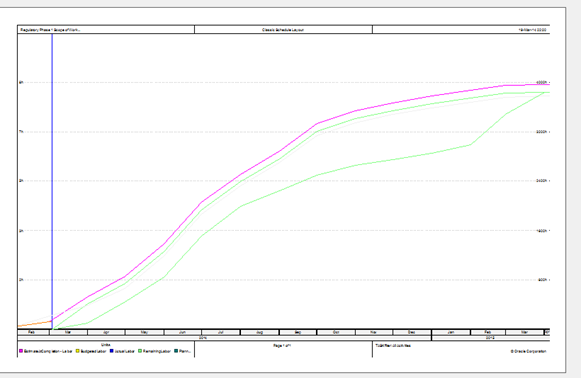
P6 and Risk Manager Compatibility Chart

The following lists the minimum version of Primavera Risk Analysis required to use the direct connection with each version of Primavera Project Management:

  • P6.2-->Pertmaster 8.5.0049
  • P6 v7-->Primavera Risk Analysis 8.6.0018
  • P6 R8-->Primavera Risk Analysis 8.7 SP1 (8.7.0029)
  • P6 R8.1-->Primavera Risk Analysis 8.7 SP2 (8.7.0046)
  • P6 R8.2-->Primavera Risk Analysis 8.7 SP3 (8.7.0047)
  • P6 R8.3-->Primavera Risk Analysis 8.7 SP5 (8.7.0056)

While the appropriate version of Primavera Risk Analysis is required to use the direct connection, typically an XER can still be imported if this requirement is not met.
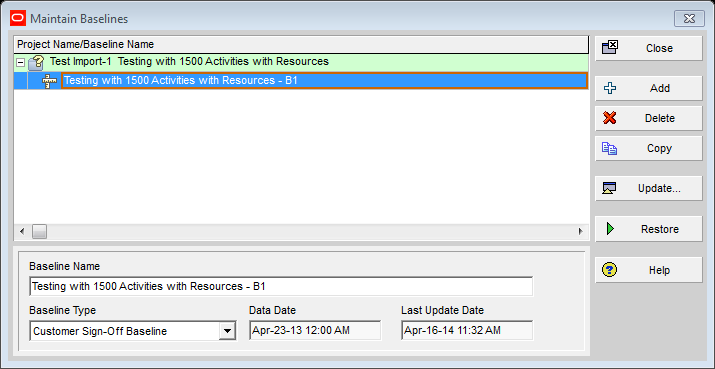
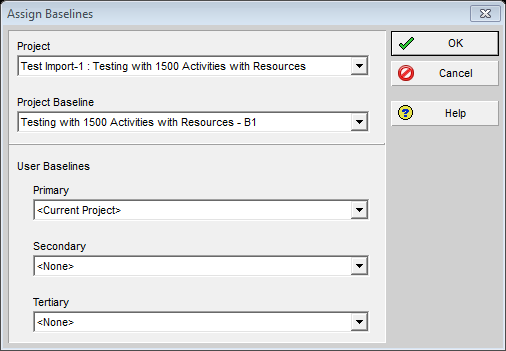
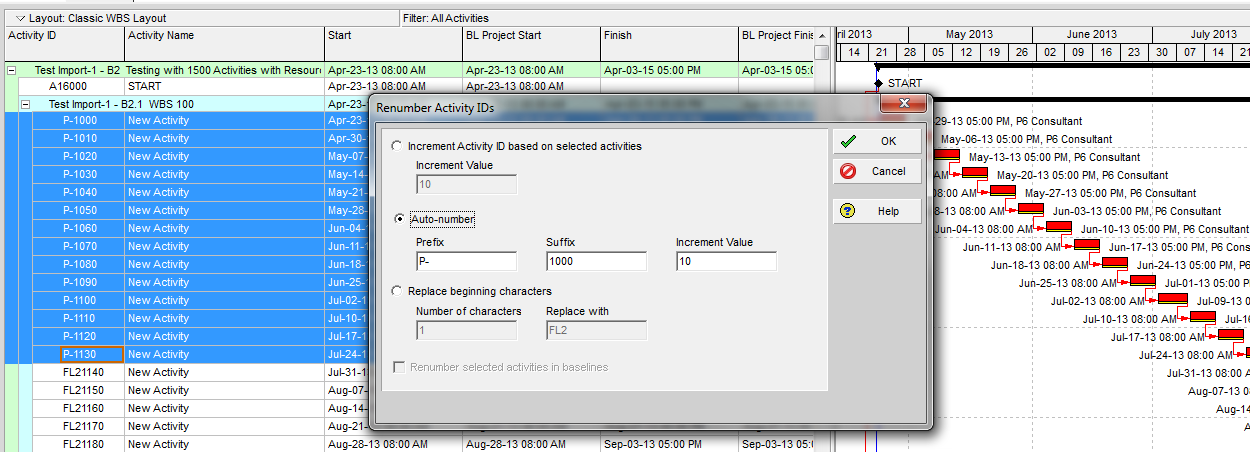
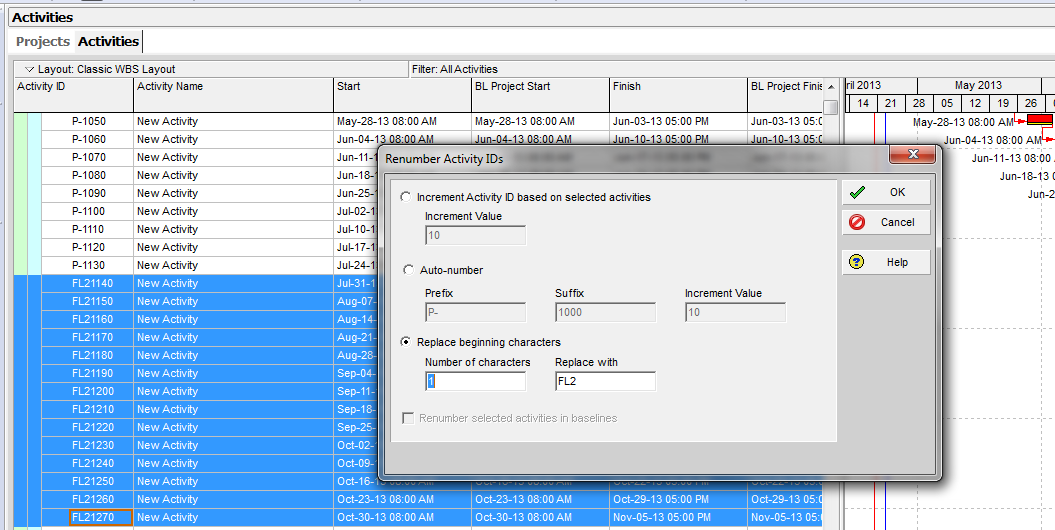
Does Changing the Project Activity Id’s After the Baseline is Set Affect the Baseline?

1. Opened Test Project

2. Set the Baseline B1

3. Assigned B1 as Project Baseline

4. Changed several Id’s with the Client tool

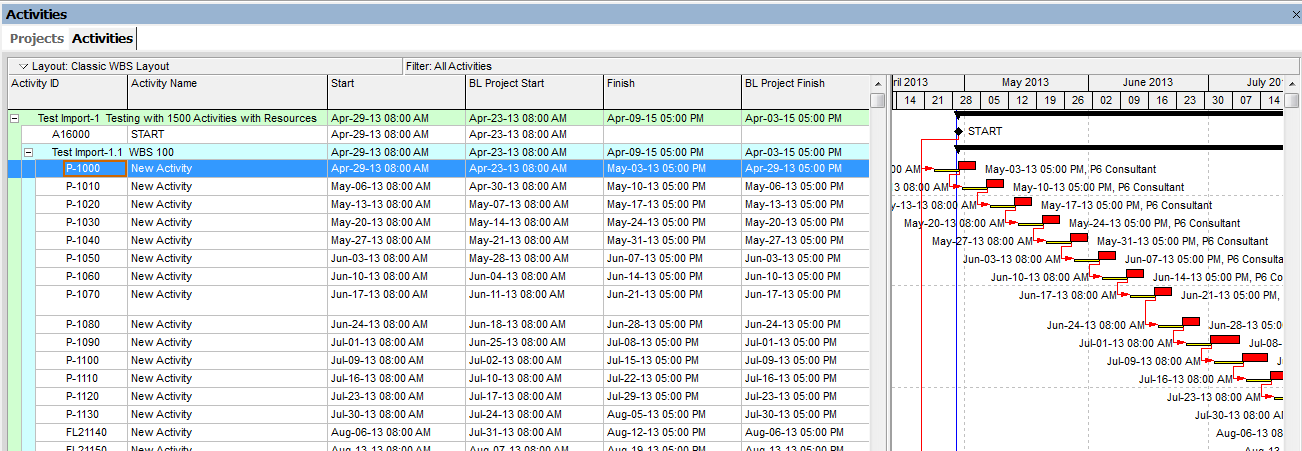
5. Scheduled the Project to see variance with baseline

6. No Change in Dates or Lines

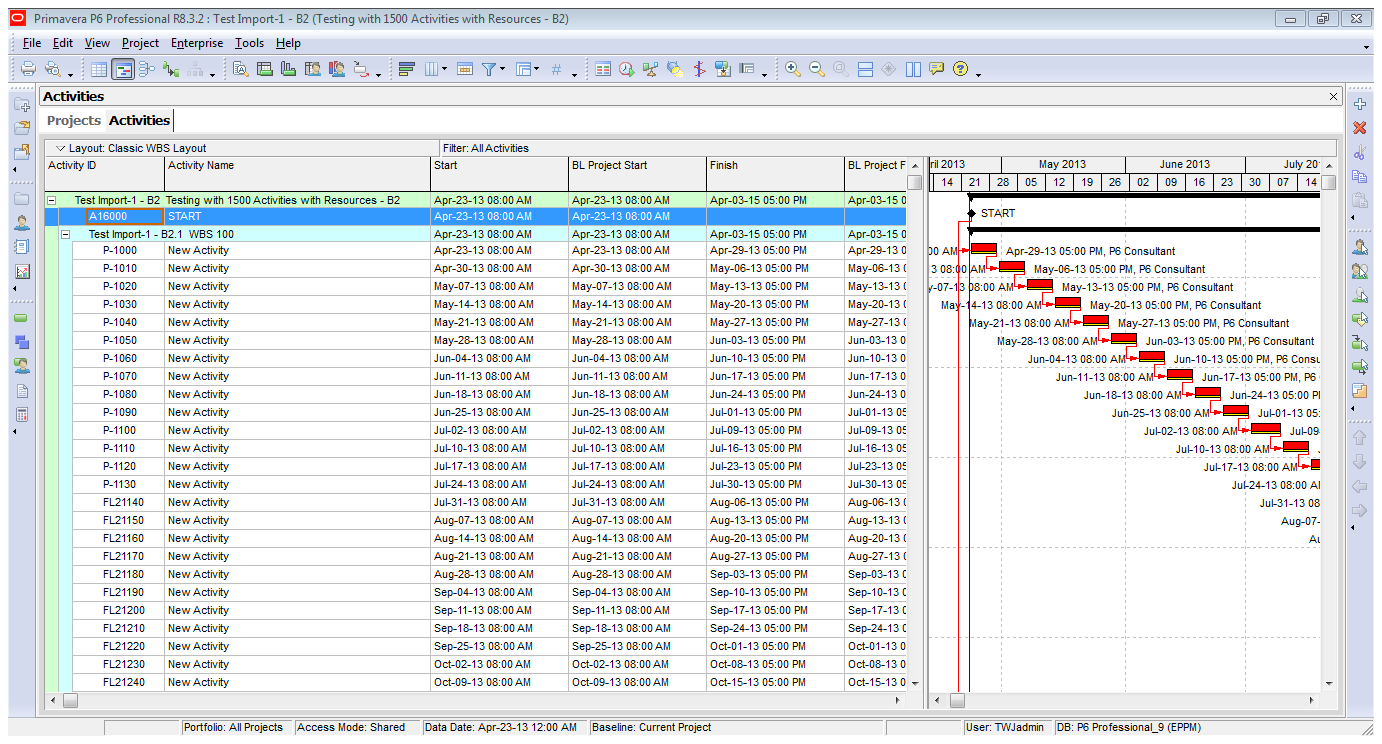
7. Copied and Restored baseline B2 to check Activity Id’s

8. Same ID Changes are noted in B2 as the Original Project.

Conclusion = It would seem safe to change Project Ids after the Baseline has been set and assigned.

How To Launch 64-bit JRE Plugin in 64-bit IE-10

To launch 64-bit JRE plugin in 64-bit Internet Explorer, version 10:

  • Open Registry editor (Start > Run > regedit)
  • Go to HKEY_LOCAL_MACHINE\SOFTWARE\Microsoft\Internet Explorer\MAIN folder
  • Directly under the MAIN, add a new String value called TabProcGrowth, and set its value to 0
  • relaunch IE10 and verify that P6 applets launch the 64-bit JRE. Note: If you want to launch 32 bit JRE plugin set the registry key (TabProcGrowth) value greater than zero.

Understanding Activity Dates in P6

Start = the current start date = the Remaining Start date until started then = Actual Start date.

Finish = the current finish date = Planned Finish date until started then = Remaining Finish date while in progress then = Actual Finish date when completed.

Actual Start = date the activity started.

Actual Finish = date the activity actually finished.

Early Start = Remaining Start date. The earliest date the remaining work for the activity can begin. This date is based on activity relationships, schedule constraints, and resource availability.

Early Finish = Remaining Finish date. The earliest date the activity can finish. This date is based on activity relationships, schedule constraints, and resource availability.

Late Start = Remaining Late Start date. The latest date the remaining work for the activity must begin without delaying the project finish date. This date is based on activity relationships, schedule constraints, and resource availability.

MSP & P6 File Import

For v6.2 to R8.1:

Supported versions/formats:

  • Microsoft Project 2002 - MPP, MPX
  • Microsoft Project 2003 - MPP (only available with MSP version lower than 2007 installed), MPX
  • Microsoft Project 2007 - XML

Microsoft Project 2007 can now be imported and exported using only XML format except when Importing Summary Projects and Resource only Projects. ProjectLink is not supported nor is Importing of MPP files.

Microsoft Project 2007 or later no longer needs to be installed on the same machine as (P6 v6.2, P6 v6.2.1, P6 v7) in order to import MSP XML files.

For R8.2:

Supported versions/formats:

  • Microsoft Project 2003 - MPP (only available with MSP version lower than 2007 installed), XML
  • Microsoft Project 2007 - XML
  • Microsoft Project 2010 - XML

Important Note: "Update Existing" is a new option in 8.2 when importing MSP XML files using the P6 client. During the import process using "Update Existing", P6 will match the "MSP Activity ID" User Defined Field (NOT the Activity ID) in P6 with the ID field in the imported file to determine if the activity is a new or existing activity.

Minimum Permissions for Oracle Primavera P6 Client 8.3

As with any software product, be aware that security changes made for third party applications might affect P6 EPPM applications. For example, if you configure WebLogic to use only SSL v3.0, you must disable TLS v1.0 for the client JRE for P6 to launch properly. If using an Internet Explorer browser, you must also disable TLS v1.0 in Internet Options.

Safe Deployment of P6 EPPM

To ensure overall safe deployment of P6 EPPM, you should carefully plan security for all components, such as database servers and client computers that are required for and interact with P6 EPPM. In addition to the documentation included with other applications and hardware components, follow the P6 EPPM-specific guidance below.

Administrative Privileges Needed for Installation and Operation

As the P6 EPPM Administrator, you should determine the minimum administrative privileges or permissions needed to install, configure, and operate P6 EPPM. For example,to successfully install the required JRE for P6 EPPM Web applications (for example, P6 and P6 Progress Reporter), you must be an administrator on the client machine during this installation or update.

Subscribe to Oracle Primavera P6